Using a Monthly Profile in a New Scenario
In this exercise, you will create a new scenario and replace a constant demand value with a Monthly Profile. This is useful when you want to represent seasonal variation in demand or abstraction throughout the year.
A Monthly Profile assigns a different value to each month of the year. By default, this creates a stepwise pattern, where the parameter value changes at the beginning of each month.
1. Create a new scenario
Section titled “1. Create a new scenario”Create a new scenario, click on the Clone a scenario icon
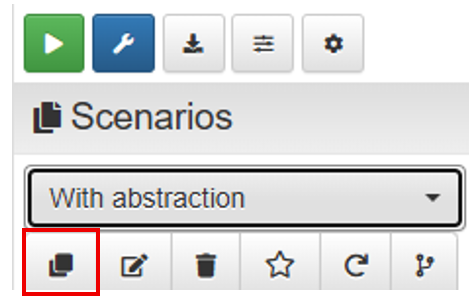
Select With abstraction as the scenario to clone. Then enter a name for the new scenario, for example With abstraction monthly profile, and click Clone.
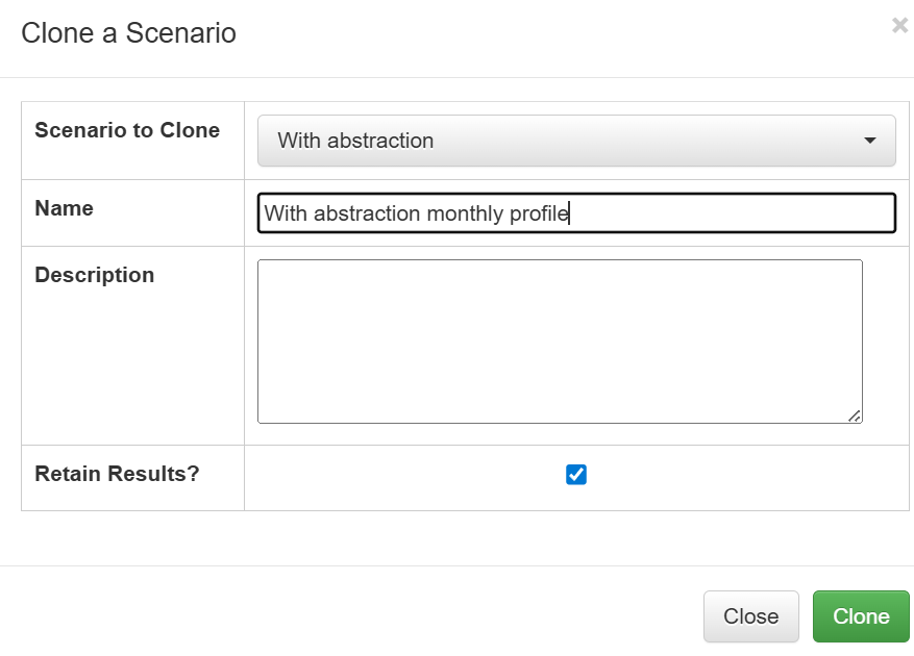
The new scenario will automatically become the active scenario.
2. Edit the demand parameter
Section titled “2. Edit the demand parameter”At this stage, the new scenario is still an exact copy of the With abstraction scenario.
In this new scenario, you will assign a different demand value to each month of the year.
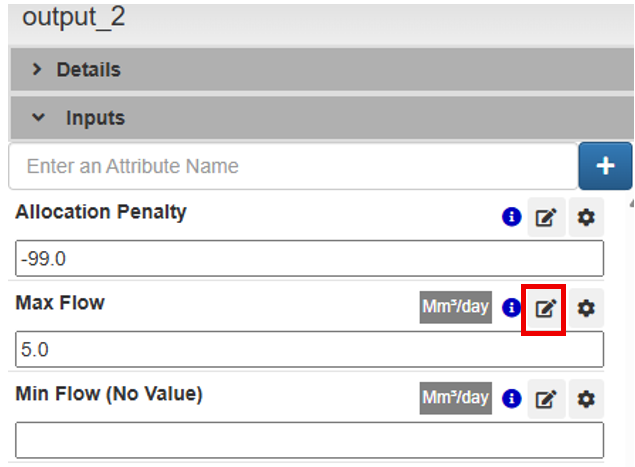
Click the Edit icon for the demand node parameter.
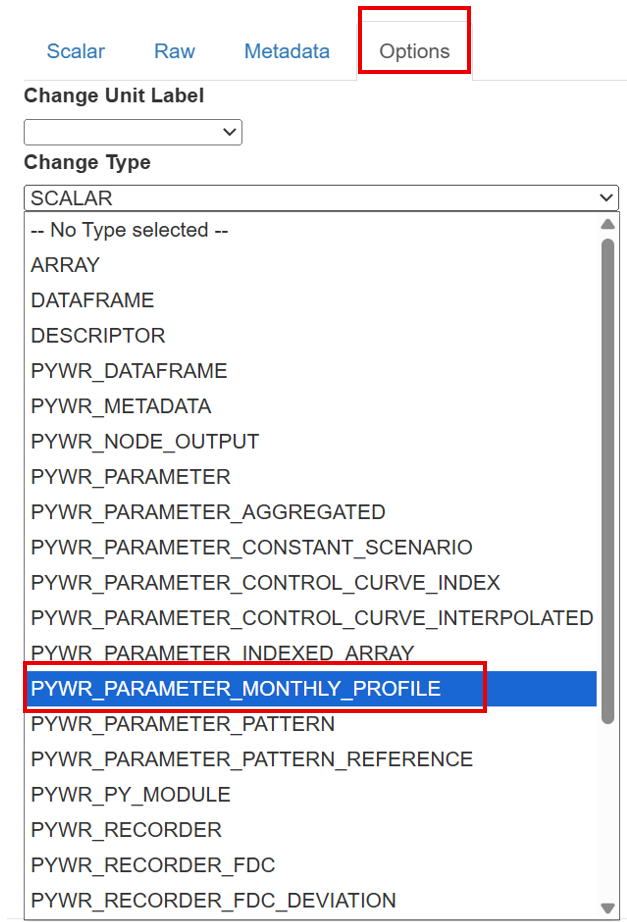
In the Options tab, select PYWR_PARAMETER_MONTHLY_PROFILE, to create the new parameter type.
Then go to the Monthly profile tab and enter the monthly values as shown in the image.

3. Run and compare the scenarios
Section titled “3. Run and compare the scenarios”Once the monthly values have been entered, compare the scenarios by selecting them from the menu and then pressing the Play button.
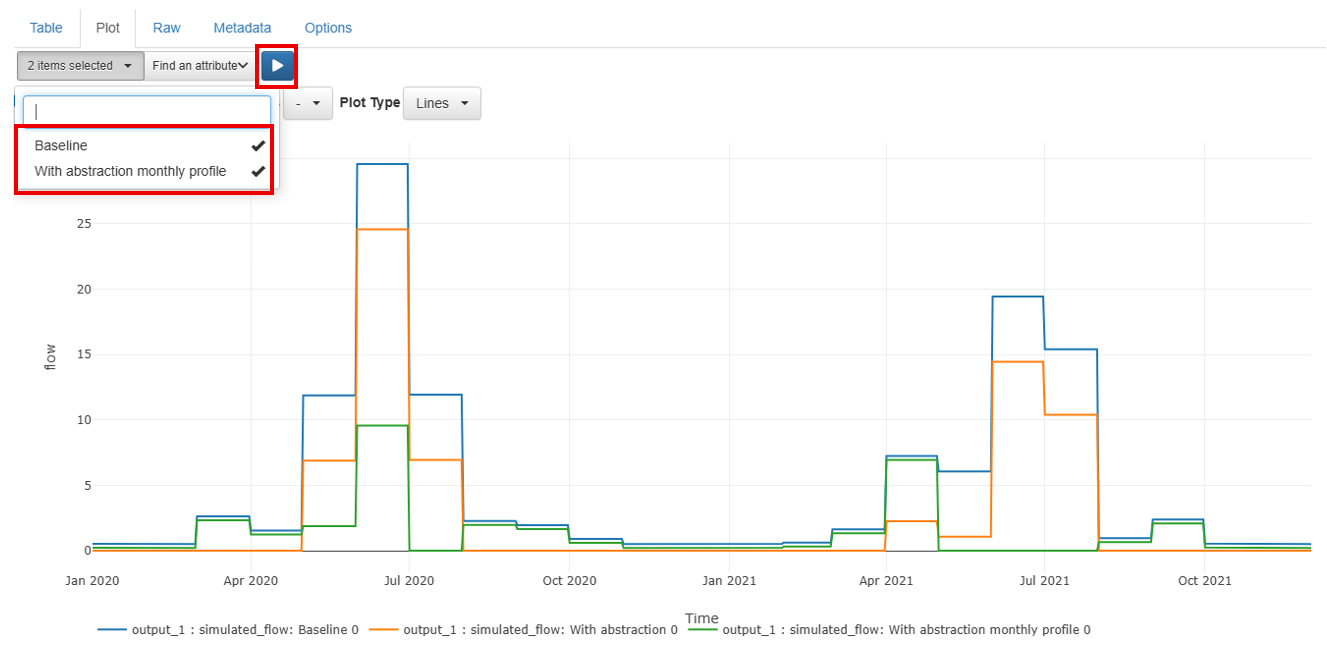
The comparison shows the effect of replacing a constant demand with a monthly varying demand profile. In the original scenario, demand remains fixed through time. In the new scenario, demand changes month by month, which produces a seasonal stepwise pattern in the simulated flow results.
This type of parameter is useful when representing systems where abstraction or demand varies seasonally, for example due to climate, irrigation schedules, or operational rules.