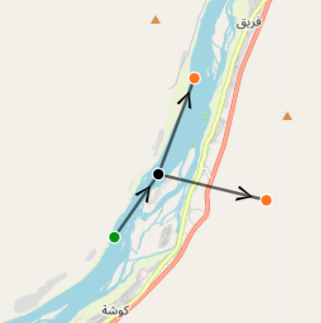
Creating a new Project and Network
Creating a new Project and Network
- In the interface homepage, click “Create Project” in the upper right hand corner.
- Type your project name and select “Add”.
- Enter your new project.
- Click “Create Network” on the right hand side.
- Choose the “Manual” tab.
- Enter a network name.
- Choose either of these two pywr templates.

-The other templates are for other modeling systems such as power systems.
- Choose “Use Map” to have the world map displayed for model building.
- Click “Submit”.
- Enter the created network.
- Toggle and zoom to an area along the Nile.
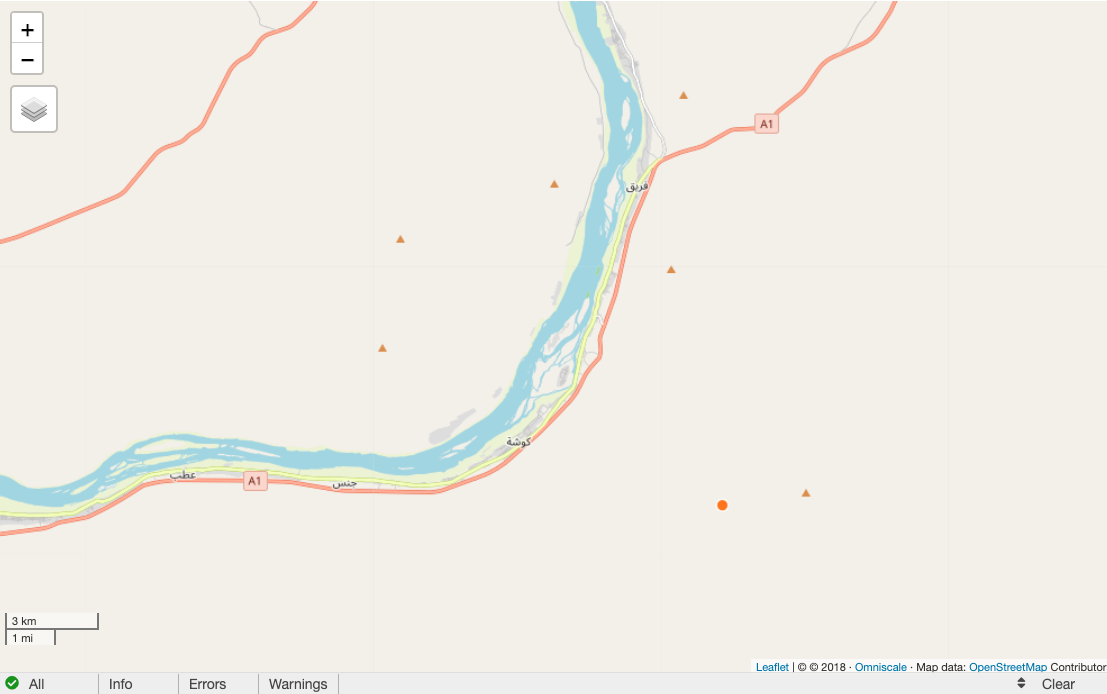
- Select the “Build” dropdown.
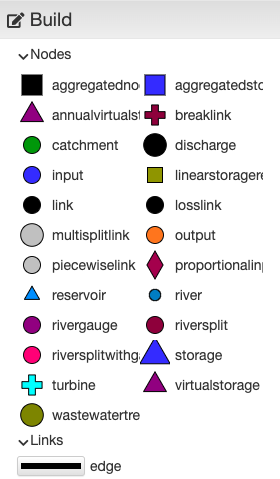
- Drag a catchment, a link, and two output nodes into the model as seen below.
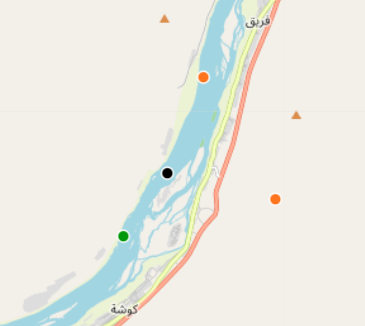
-The second output node (off-river) will be used as a water abstraction node.
-Notice that the catchment node is upriver, and the output node is downriver.
(the Nile flows north in this part and overall)
- Using the “Links” feature, connect the nodes in the direction of the flow.
-This is done by clicking the upflow node first and the downflow node second.